
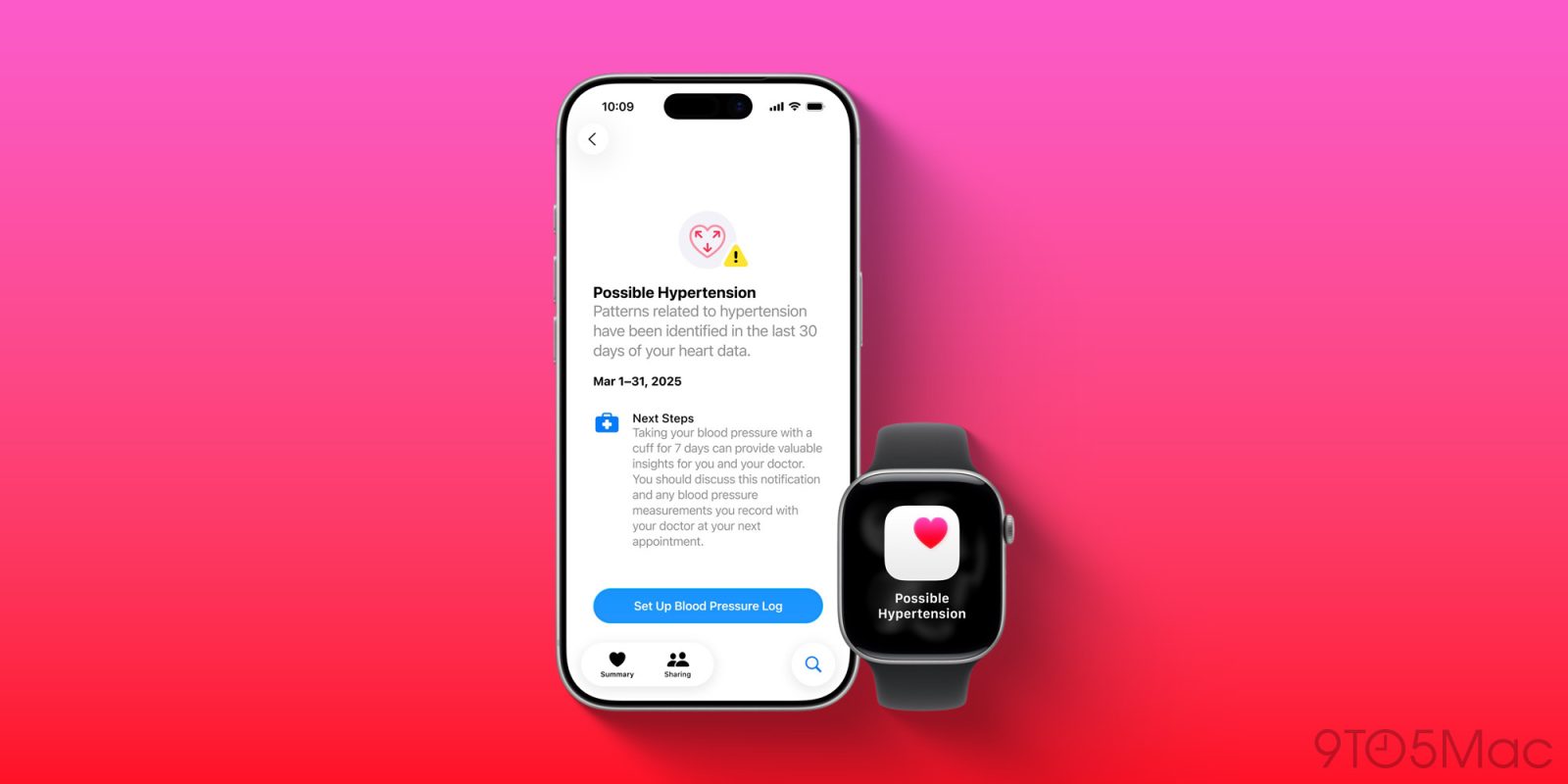
One of the flagship new features of Apple Watch Ultra 3 and Series 11 is hypertension notifications. But in a welcome surprise, watchOS 26 brings the new hypertension feature to select older Apple Watch models too. Here’s how to set it up, and which models are compatible.
Compatibility requirements for Apple Watch hypertension alerts
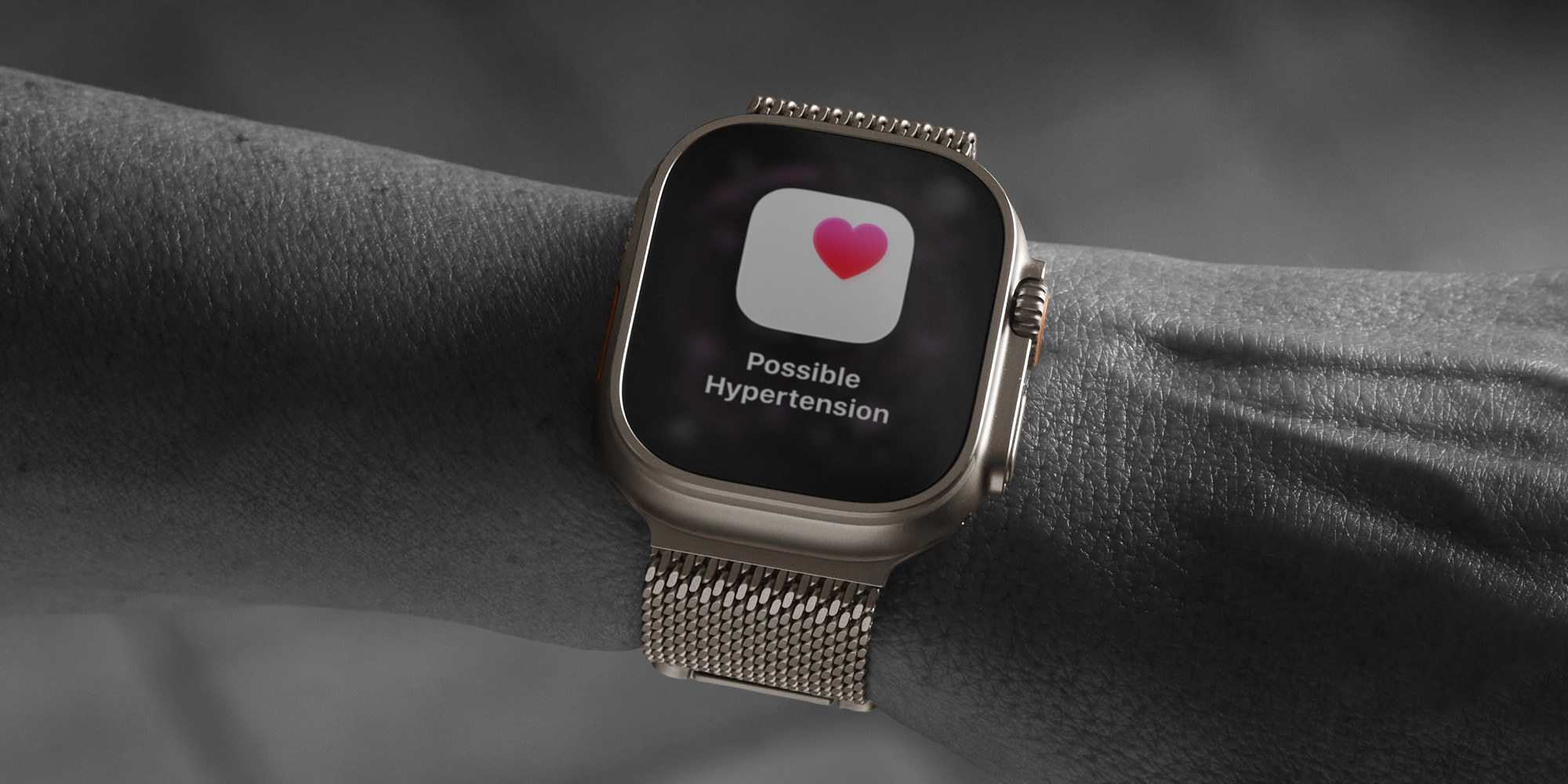
Hypertension notifications are now available in watchOS 26 for the following Apple Watch models:
- Apple Watch Series 11
- Apple Watch Series 10
- Apple Watch Series 9
- Apple Watch Ultra 3
- Apple Watch Ultra 2
To activate the feature, you will also need an iPhone 11 or later that’s running iOS 26.
Apple has some additional listed requirements to use the feature:
- Wrist Detection must be enabled on your Apple Watch
- You must be 22 years or older, not pregnant, and have not been diagnosed with hypertension
The activation process for hypertension notifications involves confirming most of these details when prompted.
How to use hypertension feature in watchOS 26
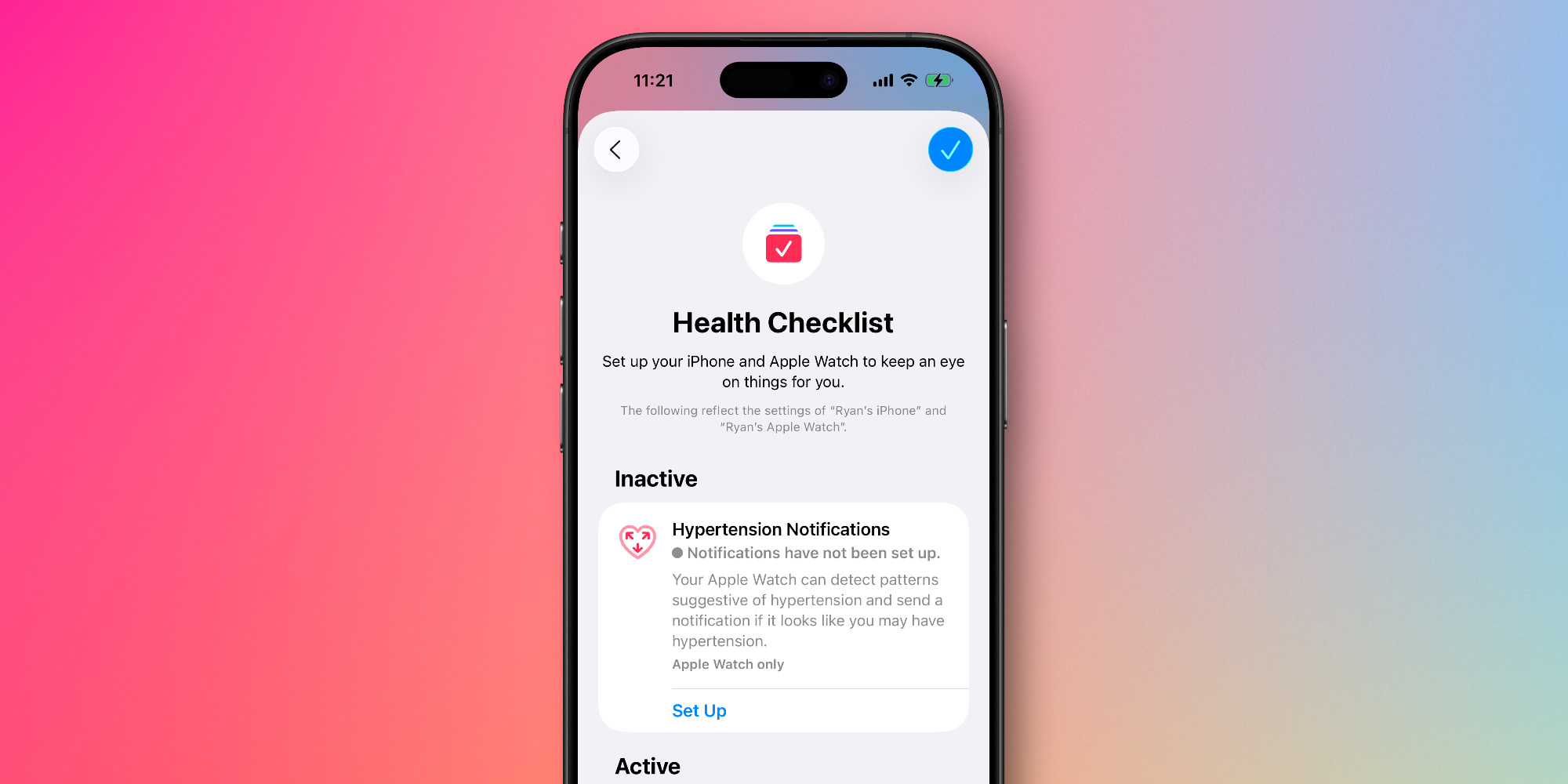
Once you have met all of the requirements listed above, here’s what Apple says you need to do to enable hypertension notifications.
Follow these simple steps:
- On your iPhone, open the Health app
- Tap your profile icon in the upper corner
- Under Features, tap ‘Health Checklist’
- Tap ‘Hypertension Notifications’
- Confirm your age and if you’ve ever been diagnosed with hypertension, then tap Continue
- Tap Next to follow the onscreen prompts to learn how the notifications work
- Tap Done
After walking through the setup process, you won’t start getting hypertension notifications immediately.
That’s because Apple needs 30 days to gather initial data before it can accurately predict whether you might be demonstrating a pattern of hypertension.
Your Apple Watch can analyze data collected by the optical heart sensor and notify you if it detects a pattern of hypertension. This is done over 30 day evaluation periods, starting from the day you set up hypertension notifications.
For more information, visit the full support document on Apple’s website.
Best Apple Watch accessories
- AirPods Pro 3
- Anker portable USB-C charger for Apple Watch
- Retro Mac stand for Apple Watch Nightstand Mode
- Anker 20W USB-C charging brick
- SwapBandIt for easily changing out watch bands


FTC: We use income earning auto affiliate links. More.


Comments