
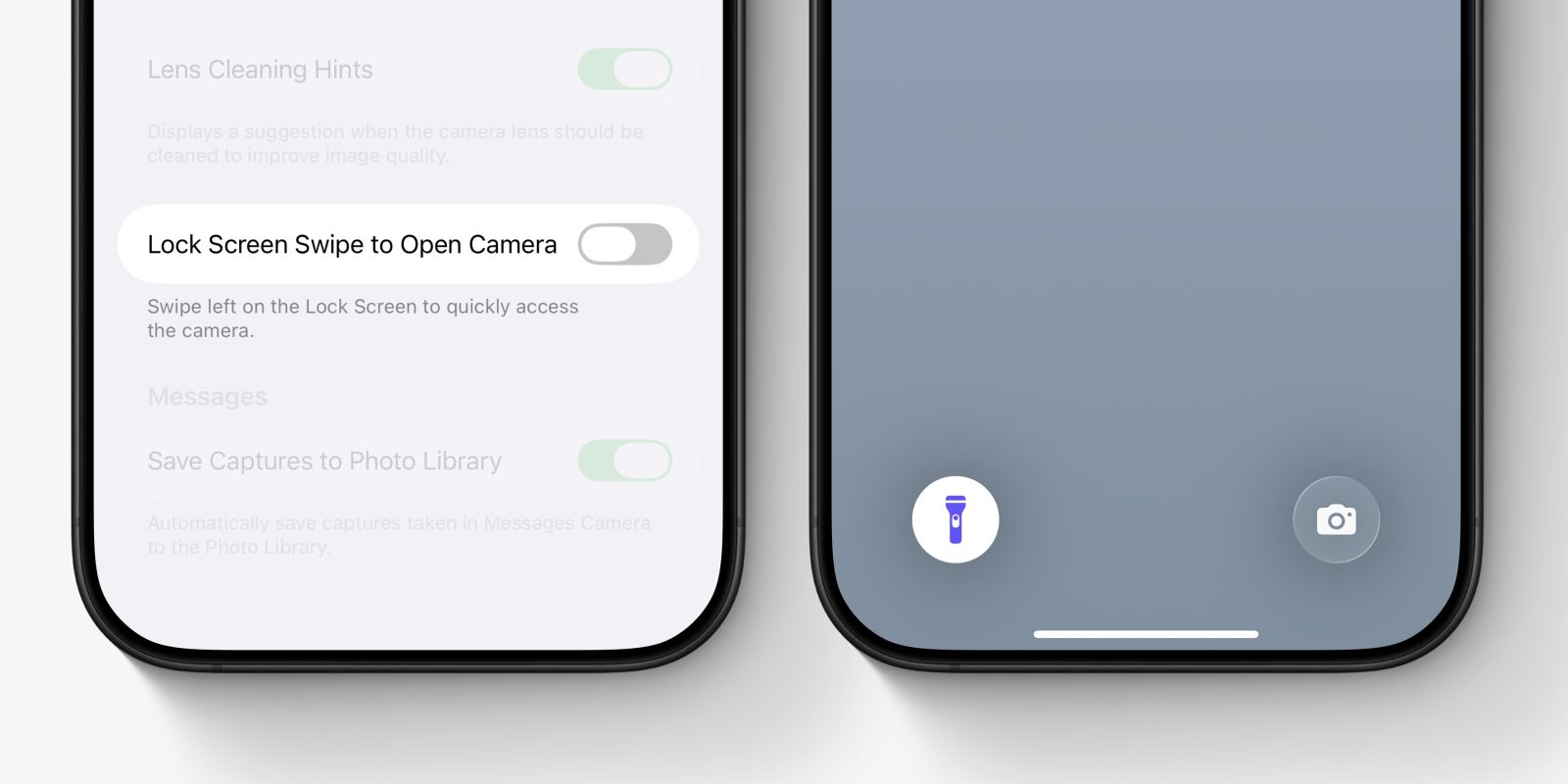
The iPhone lock screen flashlight is incredibly handy. But have you ever noticed it turn off randomly while you are holding the phone, seemingly inexplicably?
What is actually happening is the slightest touch on the screen can be interpreted as a swipe to the right to open the camera, which immediately turns off the flashlight feature. An annoying conflict of functionality, if you even realized what was happening. But with iOS 26.1, now you can actually do something to fix it.
When you are using the iPhone torch, it’s usually because it is dark and you are fumbling around to find something. In those circumstances, it is really easy to accidentally brush your fingers on the iPhone screen.
A small movement would trigger the swipe gesture activation, thereby turning off your iPhone flashlight. The camera doesn’t need to even open fully, just a small swipe is enough to start the action even if it is later cancelled. That’s why so many people would be frustrated by this without even realizing what was actually going on.
How to fix iPhone flashlight turning off accidentally
With iOS 26.1, the latest iPhone software update released yesterday, Apple has actually introduced a new setting that lets you turn off the swipe shortcut for the camera on the lock screen.
Navigate to Settings -> Camera and scroll all the way down to find the toggle for Lock Screen Swipe to Open Camera. Turn this from on to off.
With the setting disabled, inadvertent touches on the lock screen will no longer be able to trigger a horizontal swipe to the camera. The end result is that your iPhone flashlight will now stay lit much more consistently.
The best bit is you probably won’t miss the swipe being gone, as there are other ways to quickly launch Camera. You can open the Camera app using the long-press shortcut action on the lock screen, or pressing the physical Camera Control button on the side of the phone.


FTC: We use income earning auto affiliate links. More.




Comments