

iOS 26 brought major changes to CarPlay, including a new Liquid Glass design, widgets, Live Activities, and more. The Messages app also added new features like Tapbacks and pinned conversations.
With today’s release of iOS 26.2, Apple has added a new toggle that lets you simplify the Messages app …
In iOS 26 and iOS 26.1, you had no control over pinned messages in CarPlay. The interface simply mirrored your iPhone. If you had pinned conversations enabled on your iPhone, those settings would extend to CarPlay as well.
iOS 26.2 adds a new option that lets you disable pinned messages altogether on CarPlay.
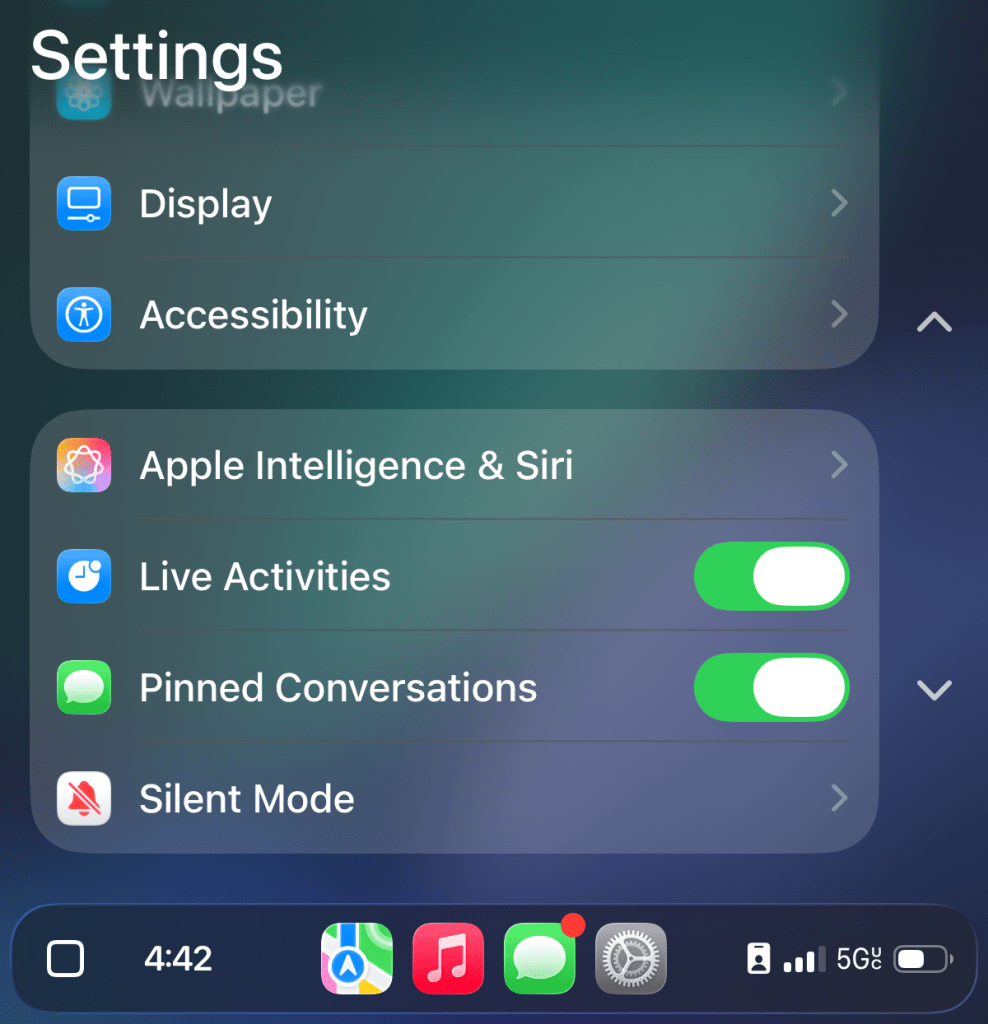
The new toggle is in the Settings app on CarPlay. Just scroll down and you’ll see a new “Pinned Conversations” toggle. Switch it off and your CarPlay Messages app will be a simple list of conversation threads.
I still think it would be useful to have a different set of pinned conversations on CarPlay versus my iPhone. I don’t really need my various pinned group chats to show up as pinned threads on CarPlay. I do, however, want my wife to always be a pinned conversation. Some more granularity beyond the current all or nothing approach would be appreciated.
What are your thoughts on CarPlay in iOS 26? Do like the new features and changes? Let us know down in the comments.
My favorite iPhone accessories:
- USB-C to USB-C cable with LED display
- Belkin 3-in-1 MagSafe charging stand
- Satechi 165W 4-port USB-C Charging Station
- Beats Pill Bluetooth Speaker
Follow Chance: Threads, Bluesky, Instagram, and Mastodon.


FTC: We use income earning auto affiliate links. More.



Comments