
iOS 26.2 is the latest major iPhone update, and among its many new features, AirPods Live Translation expanded to a lot more users. Here’s how to use AirPods’ powerful recent addition.
AirPods Live Translation: How to use the new feature
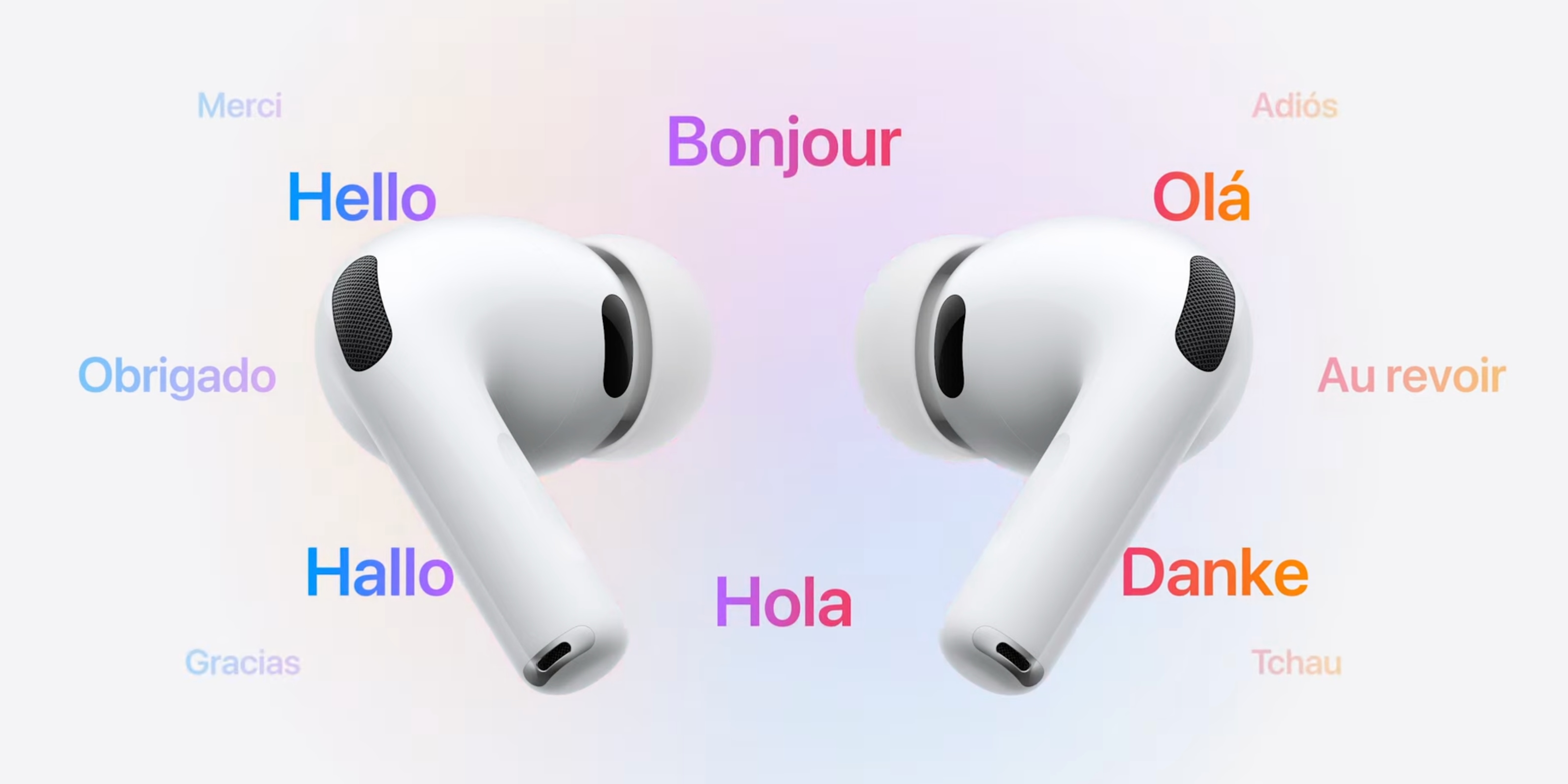
Apple has been slowly rolling out its powerful new AirPods feature: Live Translation.
- iOS 26.0 launched the feature in select territories and languages
- iOS 26.1 added support for five new languages
- iOS 26.2 expanded AirPods Live Translation to EU users for the first time.
Whether you’re just now gaining access to AirPods Live Translation, or have just never tried it, here’s how to set it up and use it.
To get started, make sure you have AirPods Pro 3, AirPods Pro 2, or AirPods 4 with ANC. Then ensure your iPhone supports Apple Intelligence and is running the latest iOS update.
Then follow these steps:
- Wear your AirPods and open the Settings app
- Tap your AirPods’ name near the top of Settings
- Scroll down to the ‘Translation’ section
- Tap ‘Languages’
- Hit the download icon next to all languages you want to use
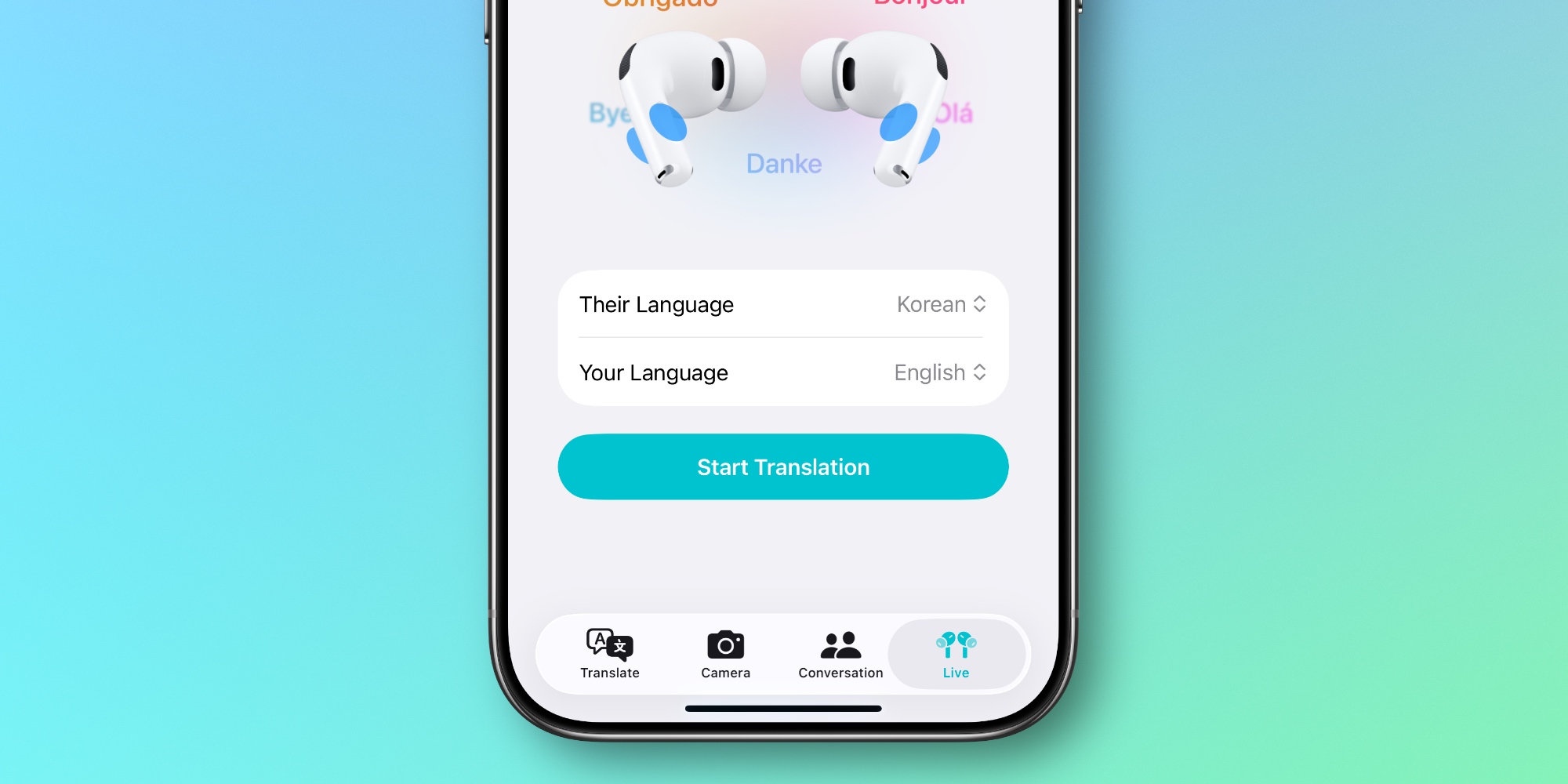
Once your preferred languages are downloaded, you’re all set up to use AirPods Live Translation.
You can start a Live Translation session in several different ways:
- inside Apple’s Translate app under the ‘Live’ tab
- by pressing and holding both AirPods stems simultaneously
- using the Translate control in Control Center or via iPhone’s Action button
- asking Siri to ‘start Live Translation’
The first time you use the feature, you’ll want to use the Translate app, as it’s the go-to place to set your language and the language of the person you’re speaking with.
Have you used AirPods Live Translation yet, and if so, how has it worked for you? Let us know in the comments.
Best iPhone accessories
- AirPods Pro 3 (now only $184, down from $249)
- Apple’s new AirTag 2 (1-pack / 4-pack)
- 10-year AirTag battery case 2-pack
- MagSafe Car Mount for iPhone
- 100W USB-C fast charging power adapter


FTC: We use income earning auto affiliate links. More.




Comments