
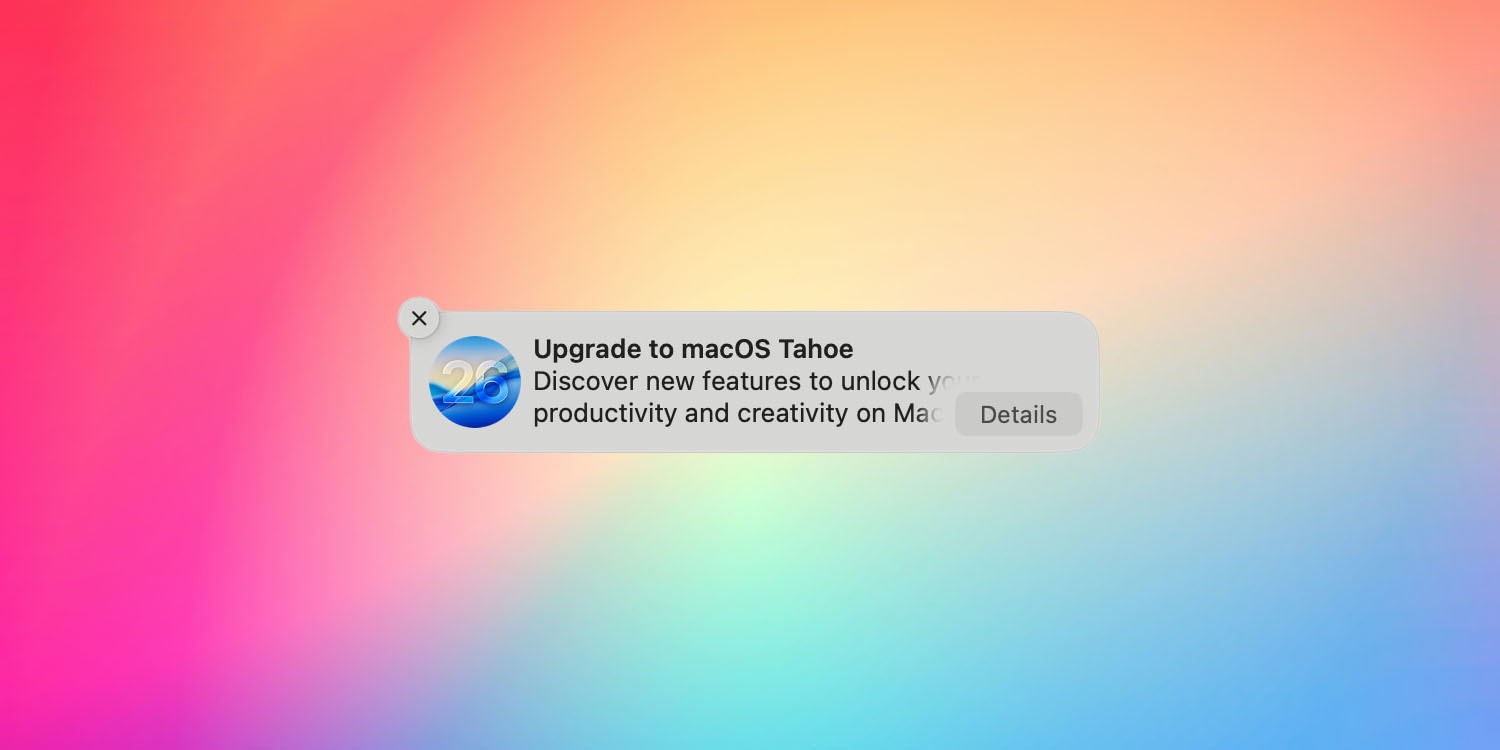
My personal view is that macOS 26 is a decent upgrade on balance, despite a few embarrassing mistakes. I also think that a minority of very vocal commenters have given a misleading impression about the level of opposition to the Liquid Glass update.
However, if you’ve decided not to upgrade, you’ll be pleased to know that you can stop your Mac nagging you to do so …
Block macOS 26 upgrade prompts
Rob Griffiths found himself annoyed at being nagged to do an unwanted upgrade and found a way to block the prompts.
I personally don’t like the look of Liquid Glass, nor do I like some of the functional changes Apple has made in macOS Tahoe. Which means I have the joy of seeing things like this wonderful notification (above) on a regular basis. Or I did, until I found a way to block them.
He did some googling and found some fellow refuseniks. The way to stop the nagging is to use a configuration profile to defer upgrade prompts.
Griffiths found the instructions needed to be expanded somewhat, hence providing his own guide, and John Gruber also weighed in on the best way to ensure that you still get prompts for macOS 15 dot updates. In Rob’s instructions, you need to change this:
<!-- Optional (set to your taste) -->
<key>forceDelayedSoftwareUpdates</key><true/>
<key>enforcedSoftwareUpdateMinorOSDeferredInstallDelay</key><integer>30</integer>
<key>enforcedSoftwareUpdateNonOSDeferredInstallDelay</key><integer>30</integer>
to this:
<!-- Optional (set to your taste) -->
<key>forceDelayedSoftwareUpdates</key><false/>
You can only block them for 90 days at a time, but that’s certainly a big improvement.
Downgrade from macOS 26
If you’ve already upgraded and then regretted it, you can downgrade back to macOS 15. However, ArsTechnica’s Andrew Cunningham notes that Apple doesn’t make the instructions too easy to follow, so he’s provided his own guide.
The easiest way to do it is to create an installer on a USB drive. Anything 32GB or larger will work, and Cunningham recommends naming it to MyVolume so that you don’t have to change any of the terminal commands to your own drive name.
It’s worth reading the various cautions in the detailed guide, and unfortunately there’s no downgrade option for a machine with an M5 chip. Right now, that’s only the base model M5 MacBook Pro, but that will of course include the more powerful models launching this week.
- Official Apple Store on Amazon
- Apple’s iPhone cases: iPhone 17 | iPhone 17 Pro and Pro Max | iPhone Air
- Wireless CarPlay adapter (2026 update)
- AirTag holders and accessories
- Mac Pro-style Mac mini casing
- NordVPN – privacy-first VPN with no logs and independent audits to verify
Image: 9to5Mac/Apple/Codioful


FTC: We use income earning auto affiliate links. More.




Comments