
Adaptive Audio originally shipped for AirPods Pro 2 only, but has since expanded to AirPods 4 too. Apple built the feature to be a contender for default noise mode for users. But did you know you can customize Adaptive Audio to better suit your needs? Here’s how an iOS 18 change might help you stick with a single AirPods noise mode moving forward.
Apple’s first take on Adaptive Audio didn’t hit the mark for me, but it’s gotten better
Adaptive Audio first came on the scene as part of iOS 17. Here’s how Apple described it at the time:
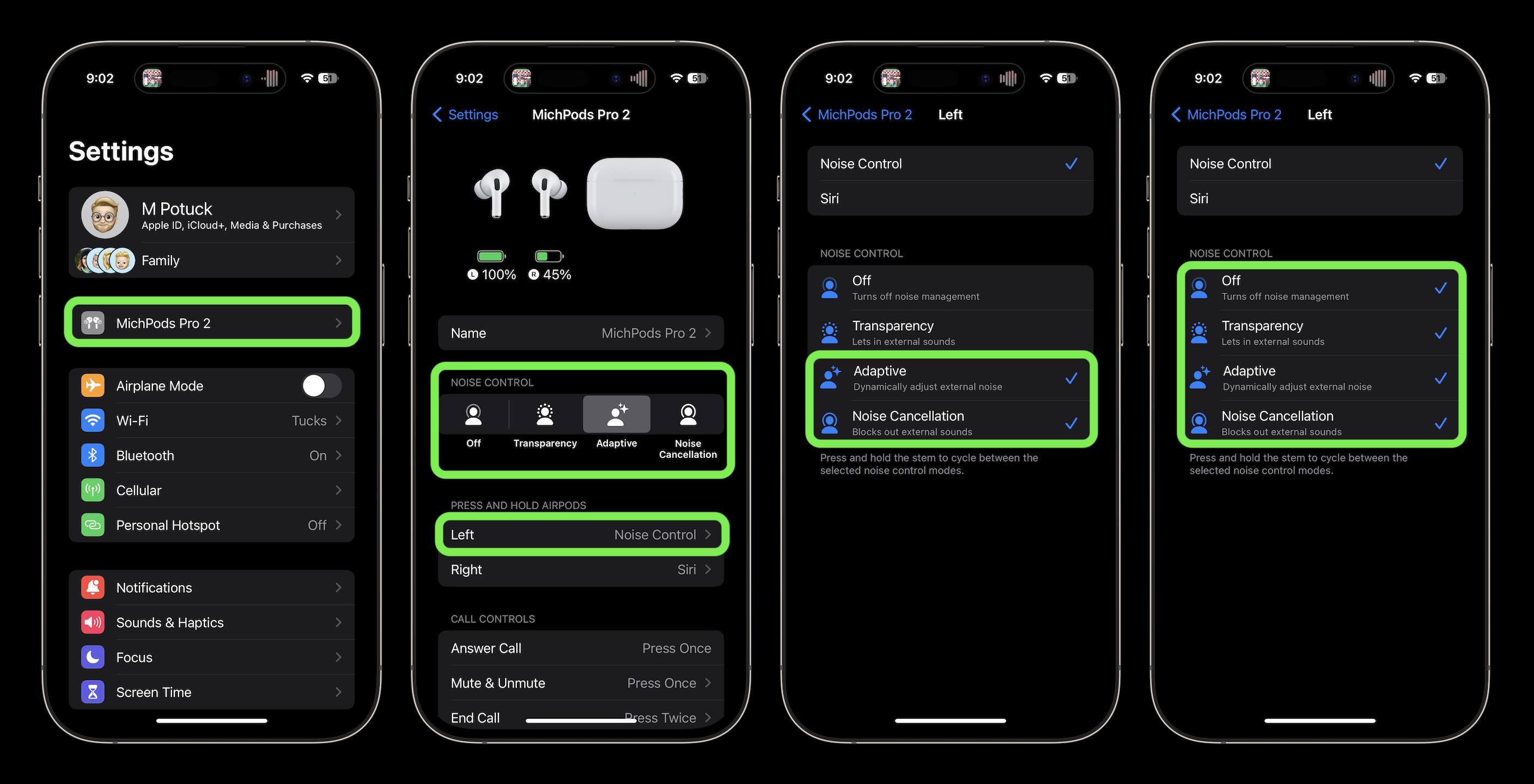
Adaptive Audio [is] a new listening mode that dynamically blends Transparency mode and Active Noise Cancellation together based on the conditions of a user’s environment to deliver the best experience in the moment. This new listening mode will seamlessly tailor the noise control experience while users move between environments and interactions that are constantly changing throughout the day.
It’s clear from Apple’s pitch that the company hoped Adaptive Audio could serve as the one noise mode many AirPods users might stick with.
Rather than needing to constantly switch between Active Noise Cancellation and Transparency, Adaptive Audio was presented as the best of both modes.
In my early testing of the feature, however, I found that it didn’t quite work like I’d hoped. It didn’t seem to offer enough noise reduction for my tastes, and I also preferred Transparency mode in some situations.
Anecdotally though, I’d heard Apple may have updated and improved Adaptive Audio over the course of various firmware updates.
So I gave it another shot recently and found it much improved.
Adaptive Audio hasn’t quite become my only noise mode, as I still use Active Noise Cancellation to block out as much sound as possible. But Adaptive has sufficiently replaced Transparency for me.
However, there was a key setting introduced in iOS 18 that I’d overlooked until now—and which just might make Adaptive the only mode I need.
iOS 18 lets you customize Adaptive Audio to suit your needs
Last September, alongside various other iOS 18 improvements, AirPods got an Adaptive Audio upgrade too.
You can now customize Adaptive Audio to allow “more” or “less” noise through.
Here’s how:
- When wearing your AirPods Pro 2 or AirPods 4, open the Settings app
- Go to the AirPods menu near the top of the screen
- In the Audio section, tap ‘Adaptive Audio’
- Use the slider to modify Adaptive Audio to your preferences
On this final screen with the slider, you’ll see the following:
Adaptive Audio dynamically responds to your environment and cancels or allows external noise. You can customize Adaptive Audio to allow more or less noise.
I’m eager to play around with adjusting Adaptive Audio to allow more or less noise and see how it works out. It would be great if these adjustments meant I could stay in Adaptive mode 24/7.
Do you use Adaptive Audio on your AirPods? Let us know in the comments.
Best AirPods deals and accessories
- AirPods Pro 2 (only $199, down from $249)
- AirPods 4 with Active Noise Cancellation
- Memory foam AirPods Pro eartips for more comfortable fit
- AirFly SE for connecting AirPods to in-flight headphone jacks
- Magnetic strap neckband for preventing lost AirPods
FTC: We use income earning auto affiliate links. More.



Comments