9to5Mac Reviews
All the products that the 9to5Mac team has reviewed.

All the products that the 9to5Mac team has reviewed.
All the products that the 9to5Mac team has reviewed.
All the products that the 9to5Mac team has reviewed.


Think of it as an iPhone-style dock for your MacBook. At home you might have several things plugged into your MacBook’s various ports (hard drives, USB products, speakers, etc), which means disconnecting and reconnecting everything each time you leave or return with your MacBook. With LandingZone, everything gets connected to ports in the back of the dock, allowing you to simply place your MacBook in the dock and instantly connect to all your peripherals. When you leave, you can pop out your Mac and walk away in seconds without thinking twice about all the connected cables. It also packs in a 5-port USB hub, ethernet adapter, HDMI, and Mini DisplayPort all while reducing cable clutter on your desk. I’ve been using the latest LandingZone Dock model for the 15-inch Retina MacBook Pro for a couple weeks and it has truly transformed my workspace.
Expand
Expanding
Close
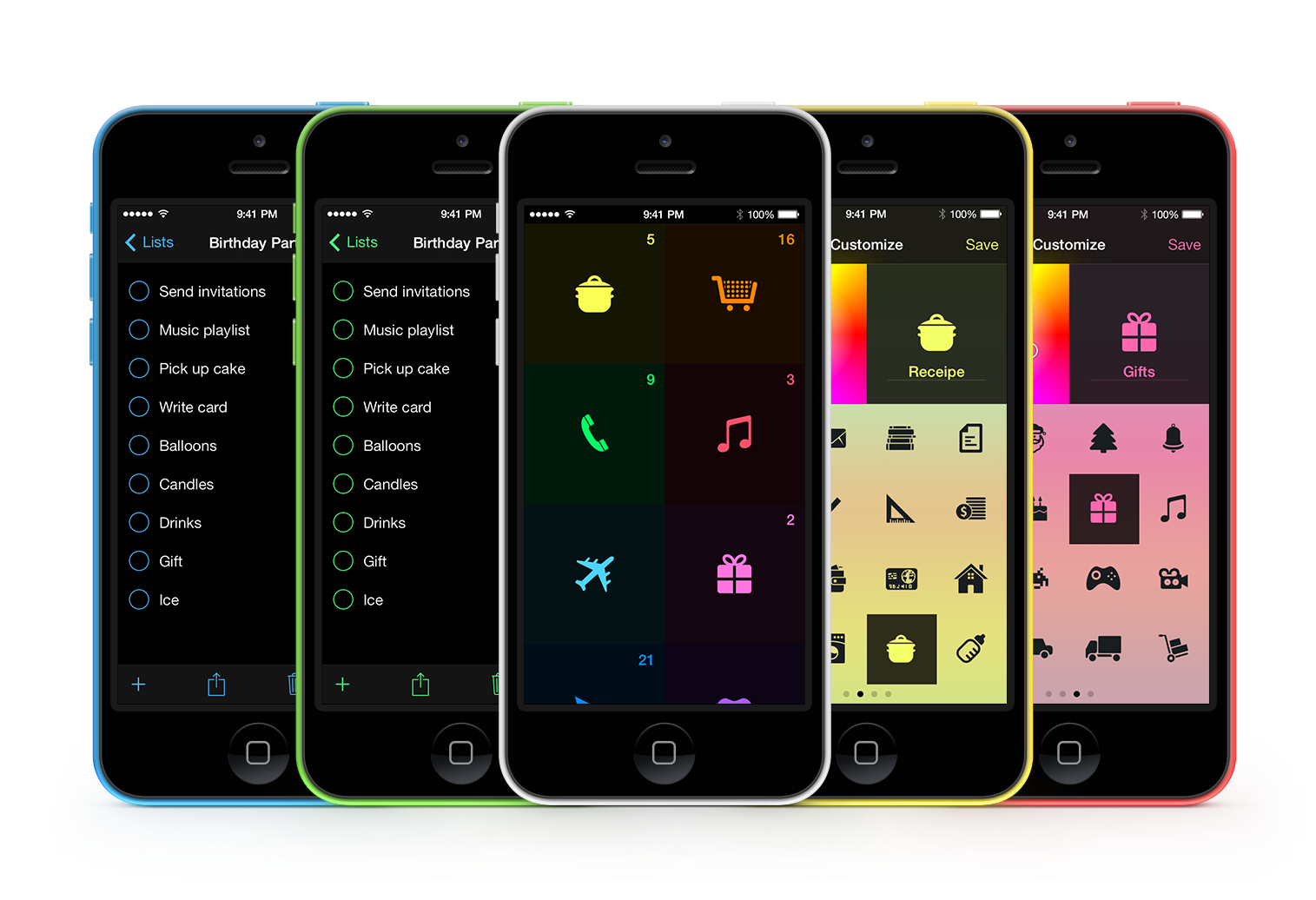
Tick is a simple, highly customizable to-do list app that effectively uses color and animation to deliver a fun and motivating experience. Developed by Taphive, Tick was created for iOS 7 and recently updated to be more customizable, have better integration with the Reminders app, and include more animations.
I generally don’t like or use to-do apps because I consider them redundant when paired with apps like Reminders and Calendar. However, I find the fun and utterly simple design of this app makes me more motivated to use to-do lists to manage tasks.
Tick’s main interface features a set of colorful square panels. Each panel represents a list of to-dos. To create a new list, you just tap on the + button, type a name for the list, choose any one of the 64 available icons, assign a color, and tap Save. Then you click the + sign icon at the bottom of the screen to add to-dos to the list you just created.

Clever animations and transitions are present throughout the app, whether you’re checking off a completed item or moving back to the main screen. You’ll even see a special animation when you manage to complete all of the tasks on any given list.
[youtube=http://www.youtube.com/watch?v=GBESskDWBTs&hd=1]
Clicking the share icon at the bottom of a list reveals options to print or share your tasks via text or iMessage, email or AirDrop. Sliding from left to right on the main screen reveals a summary with the total number of Lists and To-Dos, and allows you to access the app’s settings.

In settings, you can choose to display the name of each list or just the icon. The app also features a night mode that can be toggled manually or set to automatically switch on at a specific time. The overall appearance of the app is so bright that I actually prefer to leave it in night mode throughout the day.
Settings has numerous other features like the ability to choose from numerous fonts, whether to vibrate or not when you trigger certain functions, and a myriad of choices regarding the app’s home screen badge.
Even the About section of Settings has a number of handy features.
I especially like the fact that the app works with the Dynamic Text accessibility feature found in iOS 7.
Additionally, Tick completely integrates with your existing Reminders app. This allows you to use Siri to add entries to your Tick lists, and keeps your lists synced across all of your devices with iCloud.
I highly recommend Tick to anyone looking for a fresh approach to getting the necessary tasks in their life and work organized. Tick is available for $1.99 on the iOS App Store.

[youtube=http://www.youtube.com/watch?v=M9HTQybOxcI]
Wireless drives have been around for a little while now. There’s the Seagate GoFlex Satellite, and the Kingston W-Drive SSD, for example. They generate their own wifi networks, and you can then stream content from them to either a Mac or, more usefully, an iOS device.
Lacie has taken that concept a stage further, by adding the ability to upload content from iPhones and iPads also, and with 1TB capacity, you’re unlikely to find yourself running short of space.
I tested it with a MacBook Air, iPad and iPhone, and was generally impressed …
Outread is a new speed reader app for the iPhone that helps you read faster by highlighting short sections of text. Focusing on the highlighted section helps you efficiently and quickly move through the text. This differs from most speed reader apps in that they use a technique called Rapid Serial Visual Presentation, which presents one word at a time.
Both of these speed reading techniques force the reader to stop reading out loud inside their head (subvocalization), which is what slows us down when we are reading. Generally a reader’s average reading speed is two hundred words per minute, but Outread supports reading speeds up to one thousand words per minute and a marker size of one hundred characters.
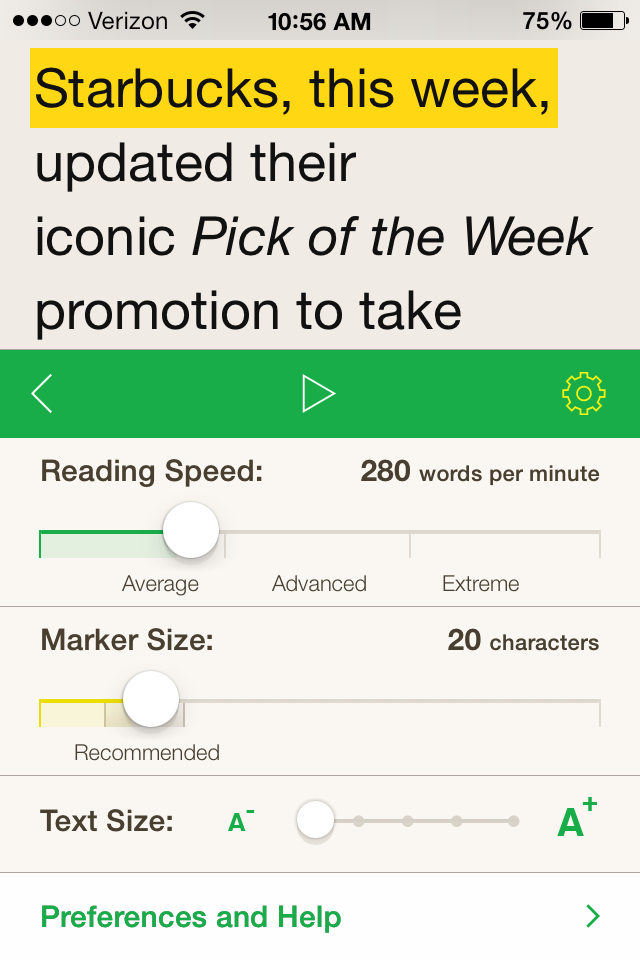
Under the app’s settings, you can adjust the Reading Speed (how many words go by per minute), Marker Size (how many characters are highlighted), and the size of the text. You can also enable a dark theme and see a preview of the different fonts that are available. The color of the highlighter is not customizable. Because of this, I found that it took me a while to find the highlighter when using the app’s dark theme.
Outread also has a feature that allows you to import text or URL’s from your clipboard. While it doesn’t automatically detect the clipboard’s contents when you launch the app, the function is only a tap away.
You are also able to install a “Read In Outread” bookmark which will save articles from Safari to the app’s reading list. When you save the articles to Outread, it downloads them for offline viewing so you can read them without an internet connection, which is perfect for use while traveling. If you use Pocket, Readability, or have an Instapaper subscription you are able to sign into these accounts in Outread and see your offline lists.

Outread does not support importing Microsoft Word documents, Pages files, or PDF files, which is inconvenient when it comes to reading papers and articles for school. Hopefully this functionality will be added in a future update. For now, copying the text from those documents and importing it via the clipboard is a helpful workaround.
I have been using Outread for reading the news and articles for school. Compared to other speed reader apps that use rapid serial visualization presentation, I find that it takes a bit of getting used to the animation when it scrolls down the page. If you want to try an app that can help you get through your reading list much faster, I recommend giving it a try. Outread is available in the App Store for $2.99.
Update: Check out the Harman Kardon Esquire which we reviewed in December 2014


As we begin to rely on our mobile devices for more and more of our business needs, I found myself needing a “portable Polycom” which would allow me to make quality speakerphone calls from my Mac or iPhone. Sure, the built-in speaker and mic are top notch on Apple products for their size, but I’d often have a hard time hearing what was on the other end of the line. Even more importantly, people couldn’t understand what I was saying, especially as I moved around.
I’ve decided to take a look at two similar solutions: Philips WeCall ($150) vs. Logitech P710e ($140) pictured above…
Expand
Expanding
Close
I previously reviewed the first two Apple authorized game controllers to hit the market under Apple’s new Made for iPhone/iPad/iPod touch program from Logitech and Moga. Both used Apple’s form-fitting design that docks an iPhone or iPod touch directly into the controller via a Lightning connector. However, Apple’s program also allows another breed of standalone controllers that connect over Bluetooth and therefore also work with iPad and Mac. Unveiled at CES, this week I’ve put one of the first Bluetooth, non-form-fitting designs to the test with the new Stratus wireless controller from SteelSeries.
Expand
Expanding
Close

Editors Keys today announced the first ever wireless shortcut keyboard for Apple’s recently released Logic Pro X audio suite. The keyboard sports 150 shortcuts and the company notes it was also able to fit in some extra shortcuts as icons sitting behind the text on each key. Perhaps the best part of the new Logic Pro X keyboard is the fact that Editors Keys used an actual Apple wireless keyboard for the product, which means you’ll be able to swap out your current Apple keyboard without sacrificing the look and feel. The company says it worked with the Logic Pro X community to develop the best experience possible for users:
Expand
Expanding
Close

As you doubtless gathered from my recent Scrivener review, I’m a massive fan of the best Mac app I’ve ever used for creative writing. The TL;DR version is that I wouldn’t dream of attempting to write a novel in anything else. My only real grumble is that we’ve as yet seen no sign of the long-promised iPad version of the app.
I’ve used PlainText with a Dropbox sync as a way of working on Scrivener projects on my iPad, and that works well enough at the writing stage. At the planning, stage, though, I love the corkboard interface. I was thus really interested to see an iOS app that not only provides a very similar corkboard view, but which can export and import to and from Scrivener …
Expand
Expanding
Close
On Friday we got our hands on one of the first of Apple’s new MFi game controllers for a full review of the Logitech PowerShell. Today we’re taking a look at that controller’s only real competitor: the Ace Power from Moga.
Does Moga’s controller improve on the few nitpicks we had with Logitech’s? What controller is the better buy for the $100 asking price? Head below to find out.
Expand
Expanding
Close
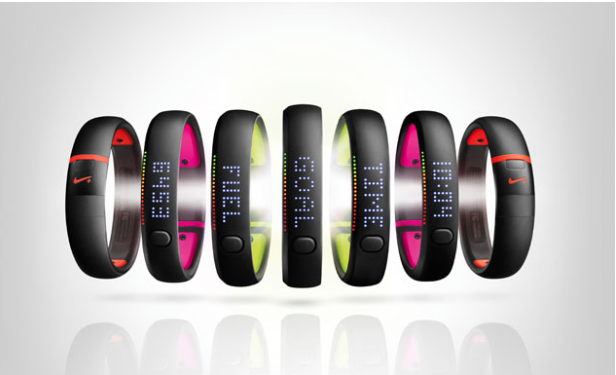
Nike’s fitness band, the FuelBand came out in February of 2012. The Nike+ FuelBand SE, the newest model of the fitness device, was released last month. Since it relies on Bluetooth LE, the Nike+ FuelBand SE is compatible with the iPhone 4S and later, as well as the fifth generation iPod Touch. Bluetooth LE allows the band to automatically connect with the Nike+ FuelBand App. The new FuelBand has been designed to be more accurate and more water-resistant.
I have been using the Nike+ FuelBand SE for a little over a month, going through two defective units (one with a broken clasp, and one with a faulty battery and accelerometer) and finally stuck with the third band (which had a sticky button) for the purpose of this review.
You don’t have a lot of time to get your shopping done. What should you do to tie up those loose ends? Yes, of course you should go buy every Apple product. It is all top notch stuff and as readers of 9to5mac, you like this stuff. We all know that. But you want some specifics for that hard-to-shop-for technologist? Go to 9to5Toys.com. Still didn’t find anything good?
OK, here we go…
Following the introduction of Apple’s new MFi game controller frameworks at WWDC in June, well-known accessory makers this month have released some of the first Apple-certified, Made for iPhone gaming controllers. Today I’m taking a look at one of those controllers with the new Logitech PowerShell, followed by some details on exactly how it differs from the new MOGA controller and exactly what to expect from Apple’s new controller experience as we wait for developers to update games with support.
Expand
Expanding
Close
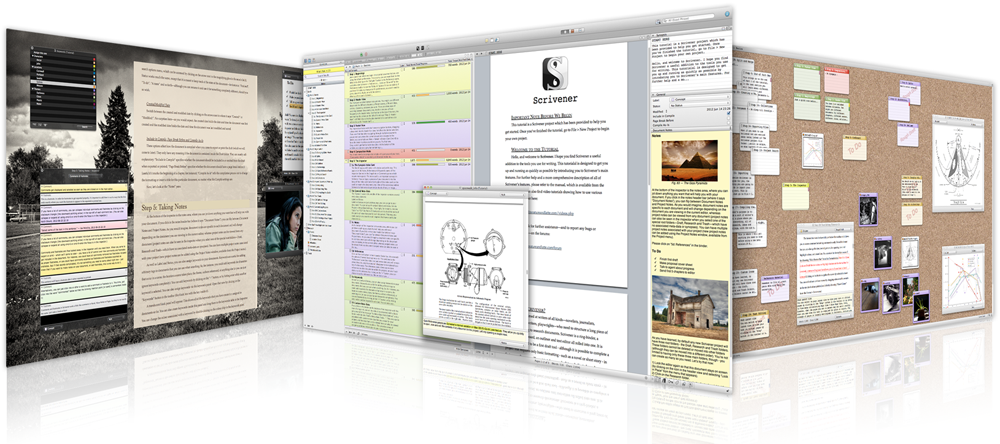
‘Writing a novel’ seems to be one of the default items on most people’s wish-lists. Most never start it, and most of those who start it never finish it, but if you want to make a serious attempt, using Scrivener would definitely be the biggest favor you could do yourself.
I must admit that the idea of specific software for creative writing stuck me as on odd one when I first encountered it. What’s wrong with Pages or Word? It was only once I tried it for myself that I understood.
What Scrivener does is bring together in one place all the resources you are likely to need to plan, research, write and either submit or self-publish a novel. Outlines, pen-portraits of characters, web pages, photos, notes, PDFs … absolute anything and everything that might help you create your opus magnum is right there all within a single app …
Expand
Expanding
Close
You’ve probably heard about the benefits of a standing desk. According to some studies, sitting on your rump for even 3 hours a day is incredibly unhealthy. Some even call it slow suicide. While the jury is still out on how bad it really is, let’s just agree to agree that standing for at least part of your desk work day is beneficial to your health.
But are you going to scrap your old desk assuming that you can just immediately stand for your whole 8-hour work day? That probably feels like a big step and somewhat risky (and sitting down sometimes isn’t going to kill anyone). It did to me.
So that’s why I was excited to try out the ErgoTron WorkFit-P standing desk. It isn’t a special desk but instead an attachment for your current desk that allows to raise your MacBook Pro/Air when you want and then lower it again when you want to sit. If your monitor is adjustable like mine, you can also just put your keyboard and mouse on it and work standing up or better yet, put your monitor on an ErgoTron too.
Need to go back to a traditional desk? It also gets out of the way when you don’t need it. Here’s how it works…
Expand
Expanding
Close

Prismatic is a news-reading app that creates a tailored feed based on each user’s personal interests. The app can analyze and crawl the user’s social data from sites like Twitter and Facebook, then analyze it for common threads that could point to specific interests. Once Prismatic is done analyzing the aggregated data, it recommends following topics it believes the user will find interesting.
Once the user has selected a few topics, Prismatic regularly tracks down content from all over the web that fit into these topics and presents them for easy reading. There are over 10,000 interests to follow, and Prismatic looks at over 5 million new stories each day.
The articles are presented on a news feed that combines all of a user’s interests on one page. Every article displays one or two lines of text, a photo (if the article includes one), and shows how many people have liked it, disliked it, or shared it. By liking or disliking a story in the news feed, users can help Prismatic’s algorithm continue to learn more about what types of content they want to see.
The Explore section lets users suggested interests and search for specific users or publications. If you find articles that you want to share, Prismatic allows you to publish links to them through Twitter, Facebook, or email.
If you’re searching for a smarter way to discover and read news on your favorite subjects, you should consider giving Prismatic a try. You can get it for free from the App Store.
Back in early November Twelve South released a new addition to its BookBook case line called the BookBook Travel Journal for stowing away your iPad, headphones, charger and whatever other accessories you carry. I’ve been trying it out since then, and it’s really an interesting, quality case for bringing along for a commute.

Every year since the introduction of the iPhone 3GS, Apple has worked to improve the camera and video capture experience of the iPhone. The iPhone 5s marks the first truly capable device for recording professional looking movies in a wide variety of situations. As Apple has shown, you can even film a television commercial with it. Chances are, you know someone, who, like myself, loves taking photos and video on their iPhone. With the holidays just around the corner, I’ve gathered up some of the best accessories for iPhone filmmaking.
The Glif Plus
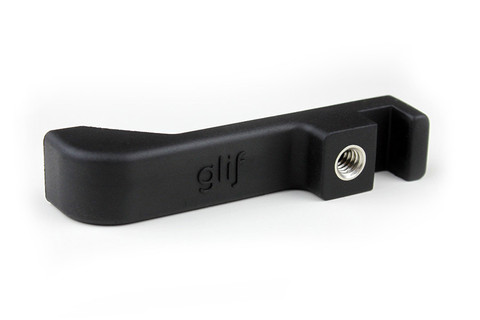
Stabilization is the best (and easiest) way to make your videos look more professional and polished. The Glif Plus is a small tripod adapter that you can slide your iPhone into. From there, you’ll be able to attach your phone to any standard tripod, for ultra smooth and stable video footage. The Glif Plus also includes an extra little stand built in which you can use as a simple prop for your device, great for watching movies. You can even attach the Glif to a keychain.
[$30]

If you’re looking for inspiration for holiday gifts for an Apple fan in your life, we thought it might prove useful if a bunch of us here at 9to5Mac put together our top gadget recommendations. I’ve tried to cover a range of price-points, though admittedly I don’t have much to suggest at the stocking-filler end …
MacBook Air 11: from $999 list
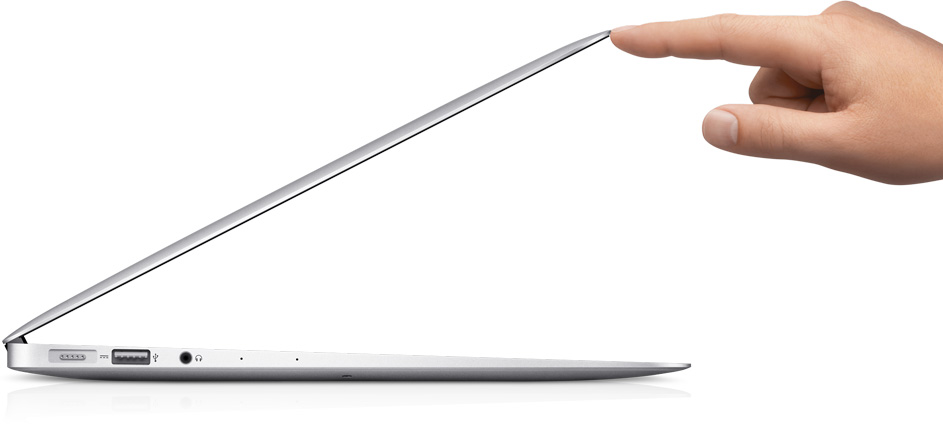
There was a time when the MacBook Air was very much entry-level, but today’s MBAs are extremely capable machines. For many people, they will be the only Mac they need, perhaps in conjunction with a Thunderbolt Display …
Expand
Expanding
Close

Our shopping days are numbered with the holidays quickly approaching, and at 9to5Mac we’re sharing our personal gift guides to help you wrap up your gift buying for the season. Below I included what I think is the best one-size-fits-all Mac this year as well as a number of smart accessories and useful gadgets for the Apple fan or tech enthusiast in your life. Let us know in the comments what your best gift picks of 2013 include.

Apple’s MacBook line ranges in size from 11″ to 15″ and offers Retina and non-Retina displays as well as significant weight and thickness differences, but the 13″ MacBook Pro with Retina display seems to best represent the lineup. It starts at $1299 compared to its 15″ alternative at $1999 and still offers the super high-resolution display which remains absent from the MacBook Air models…
Expand Expanding Close
On Black Friday week, Amazon ($449) and Sears ($499) went into a price war on the 39-inch “120Hz” Seiki 4K displays culminating in a Sub-$400 price (that I jumped on) for the 39-inch variant.
Screw it, I bought a 4K TV for $373 bucks. https://t.co/wO93y2bbQp
— Seth Weintraub (@llsethj) December 9, 2013
I’ve been using it as a 4K, 3840×2160 display for my MacBook Pro 2013 base model (no discrete graphics) off and on for a week.
How is it as a HDTV? Can you use it as a 4K display? Should you? Here’s my take:
Expand
Expanding
Close
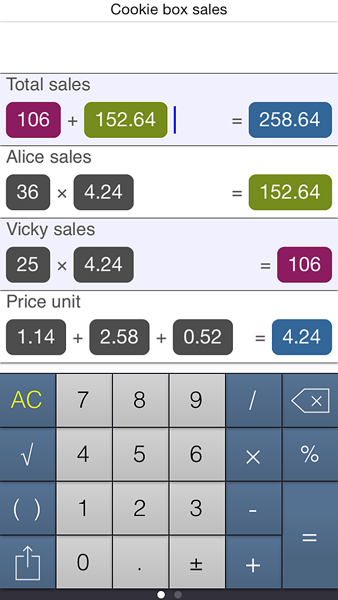
I love it when an app developer takes one of my minor grumbles and comes up with a simple solution. PopCalc is one of those.
There are times when I have a few sums to do, and the standard calculator app is a bit too dumb, while creating a spreadsheet in Numbers feels like overkill. What I really want is a cross between the two: the simplicity of a calculator, but some of the functionality of a spreadsheet. And that’s exactly what PopCalc aims to deliver …
Expand
Expanding
Close
With the debut of Ember for iOS today, the image collection app from Realmac Software just got a lot more useful with iCloud sync connecting your Mac, iPad, and iPhone.
Does the complete Ember suite have what it takes to stack up against Photo Stream, Dropbox, and other image syncing solutions? Check out my week-long hands-on experience below…
Inbox Cube is a new innovative app that allows the user to easily navigate and find their emails and quick respond to them. It does this by separating your email into three different “cubes”: Emails, Attachments, and Contacts. Inbox Cube supports Gmail, iCloud, Yahoo!, AOL, and other generic IMAP accounts. It allows multiple email accounts which you are able to view separately.
[vimeo http://vimeo.com/79432766]
The Email Cube is where you’ll find your emails. The sender’s contact photo appears on the left side of the preview (or their first initial, if they don’t have a photo). A paperclip indicator tells you if the email contains attachments, how many attachments there are, and whether you starred the email for reference later.
By default the tiny preview of the message is the first two lines. If you want to preview more of your email without entering the message, pinching out will show you the first four lines of the message (or the first three lines with thumbnails of some of the attachments). Swiping to the right initiates the “action cube,” giving you one-tap options for forwarding, replying, adding stars to messages, marking mail as read, moving, and deleting.
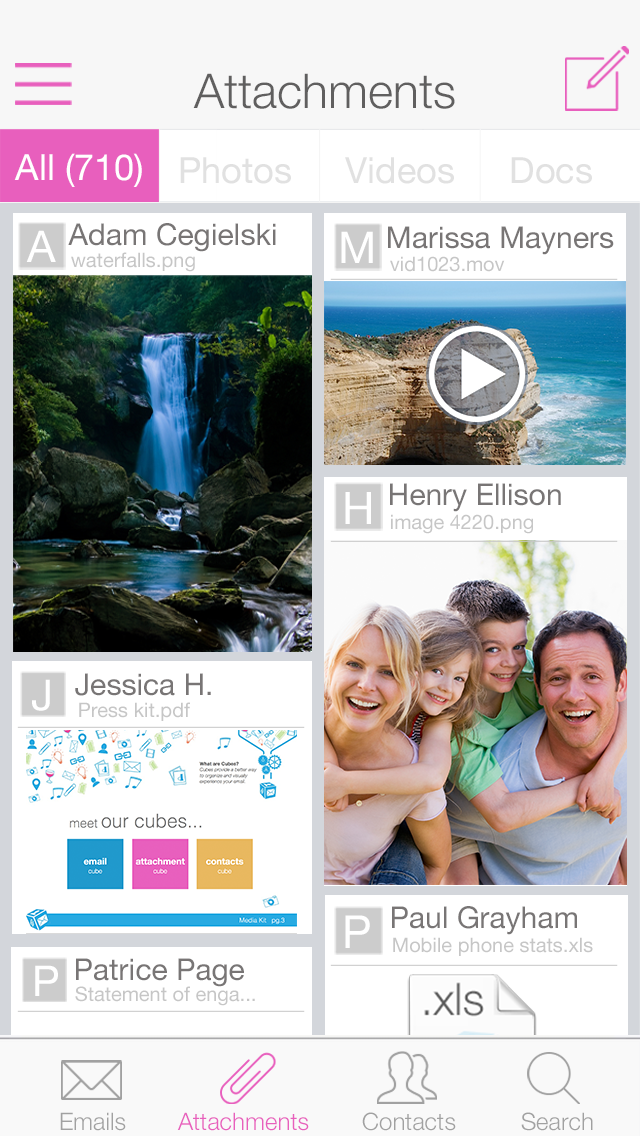
The Attachment Cube allows you to view all of your attachments, both sent and received. It provides a visual preview of each attachment and allows you to quickly go back to the email that contained it. There are also different views for separating out the different types of attachments such as photos, videos and documents.
The last cube, Contacts Cube organizes email by contact. It groups all of any correspondence to or from a specific contact together. This makes finding emails from certain people very efficient. This process is much quicker than searching your inbox for that contact and waiting for the search results to load.

Inbox Cube promises to deliver great features, but falls short in many areas, not the least of which is the number of bugs. Right away using it on my iPhone 4S going through the tutorial it was easily noticeable that parts of the interface were chopped off due to the smaller screen size. This also happened on occasion in the Attachments Cube and Contacts Cube, where you cannot scroll all the way down to see everything at the bottom.
Most of bugs lie in the Attachments Cube. Sometimes a few of the previews fail to load, while other times they all show up blank. At times the app says you have no attachments at all, even when this is clearly not the case.
The content in the Contacts Cube doesn’t always match up with the device’s built-in address book. For example, Contacts Cube easily allows you to add a photo to the contact, but that photo will not appear in the vCard in the Contacts app. If you use VIPs in the Mail app, or Favorites in the Contacts app those will not transfer over to favorites in Inbox Cube. It would be nice if either VIPs or Favorites would sync across the two different services. Also there is not a way to merge Contacts into one, which could be beneficial if one of your contacts has multiple email accounts. In the Contacts Cube it would be useful if there was an indicator denoting if you have a new email from your contact, as opposed to searching your inbox to see if anything important came.
Despite the quirks and bugs, with future updates, Inbox Cube can become a very efficient and powerful email client. It makes navigating through the cultter of your inbox easy and efficient by showing you only the things you need. Inbox Cube is available for free in the App Store.